
How to make a QR code for a Google Form
Publish your Google Form, copy its responder link, paste it into this free generator, and download the PNG. You do not need to create a Youform account.
- Publish the form and check access. Open your form in Google Forms. If it is not published, choose Publish and set who can respond. For a published form, choose Published to check that it is accepting responses and the intended audience has access. A QR code cannot override those settings.
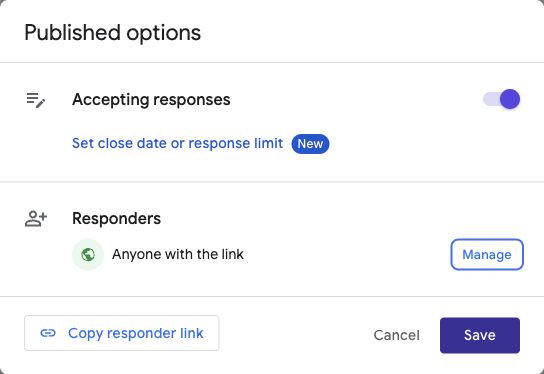
Our published sample form. Check your own audience before sharing. Select the screenshot to view it at full size. - Copy the responder link. Choose Copy responder link, then Copy. You can optionally select Shorten URL; both the full responder URL and the forms.gle short link work. Google also offers Copy responder link from Preview or Share. Do not copy the editing address from your browser’s address bar.
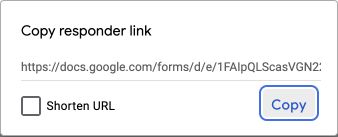
Copy the link from this popup, then return to the generator. Select the screenshot to view it at full size. - Generate the image. Paste your link into the respondent URL field above and choose Generate QR code. Download PNG when the image appears. The tool can flag a recognizable editing link, but it cannot check whether your form is published or accessible.
- Test before printing. Scan with a phone while signed out of your creator account. Check the form opens and accepts responses, and preserve the white border when placing the image on a poster or handout.
Screenshots captured from a sample form and steps checked 14 September 2026 against Google’s publishing and responder-link instructions. The screenshots show the desktop interface; on a phone, Google’s controls may be arranged differently.
Why your Google Form QR code may not work
- The camera does not recognize it: try the original PNG, keep the white border, increase the printed size, and remove blur or stretching.
- It opens an editing page: copy the responder link and generate a replacement code.
- It asks for sign-in or permission: check the form’s audience, file-upload questions, and sign-in settings. The QR generator cannot change them.
- The form is closed: check publication and whether it is accepting responses. A working QR image cannot reopen a form.
- You replaced the form: a static code keeps the original URL. Generate a new image when that URL changes.
The generator adds no expiry, redirect service, or scan tracking. That does not guarantee the destination stays available forever. If you want a branded URL before printing, first read the custom-domain guide.
Why use a QR code for your Google Form?
A QR code gives people a quick route from something they can see to a form they can answer on their phone. It is useful when typing or sharing a long link would get in the way.
- Events: put a registration or feedback form on signs, badges, or presentation slides.
- Shops and restaurants: invite feedback from a receipt, counter card, menu, or table sign.
- Classrooms and workshops: share a check-in, short quiz, or course evaluation.
- Printed campaigns: connect a flyer, package, or poster to a signup or enquiry form.
Tell people what they will get when they scan. A short invitation such as “Tell us about your visit” is more useful than a code with no context.
What you get with this free QR code generator
- No account or email gate: generate and download your code without signing up.
- No watermark: the PNG contains your QR code and its clear white border.
- No generator subscription: the code points directly to the URL you entered.
- No built-in expiry: the image keeps encoding the same URL. Your form still needs to remain published and accessible.
Keep the downloaded file and test it before printing. If you replace the form with a different URL, create a new code for that destination.
A better Google Forms alternative, with room to make it yours
Youform gives your questions a more personal presentation, with conversational layouts, colors, fonts, and backgrounds. Conditional logic lets you ask relevant follow-up questions, and unlimited forms and responses are included on Free within fair usage guidelines.
For more control, Pro adds your logo, branding removal, custom domains, and partial submissions. You can collect answers with the free plan and upgrade when those capabilities fit your work.
Import your Google Form, review the questions and settings, and publish your Youform. Use its new sharing link when you create a QR code. Explore the Google Forms comparison and current plans for the details.