


Quick answer: If you need a visible search box that filters a long list, you can use the Pretty Forms Designer add-on for Google Forms or a searchable dropdown in Youform. Keyboard navigation in a dropdown is a different interaction from typing into a visible search field.
Reviewed . This article is published by Youform.
Start with the standard Google Forms dropdown
A dropdown lets someone choose one item from a list. Try your existing question with a keyboard as well as a mouse: typeahead behavior can depend on the browser and device. Do not assume respondents will discover keyboard navigation without an instruction, or that it provides the filtered search interface you want.
For a short list, a single-choice question may be easier to scan. For hundreds of options, a visible search field gives people a clearer place to start. Google’s form-editing guide is the starting point for the native question settings.
Option 1: add a search box with Pretty Forms Designer
The developer’s Google Workspace Marketplace listing documents searchable dropdowns and the setup controls.
- Review the add-on’s permissions and current plan terms, then install it if it fits your needs.
- Open the Google Form and launch Pretty Forms Designer from the add-ons menu. Set up the designer for that form.
- Select the dropdown question, open “Options for item,” and enable the searchable-dropdown option.
- Preview the resulting form and use the add-on’s published sharing or embed instructions. Test the link your respondents will actually receive.
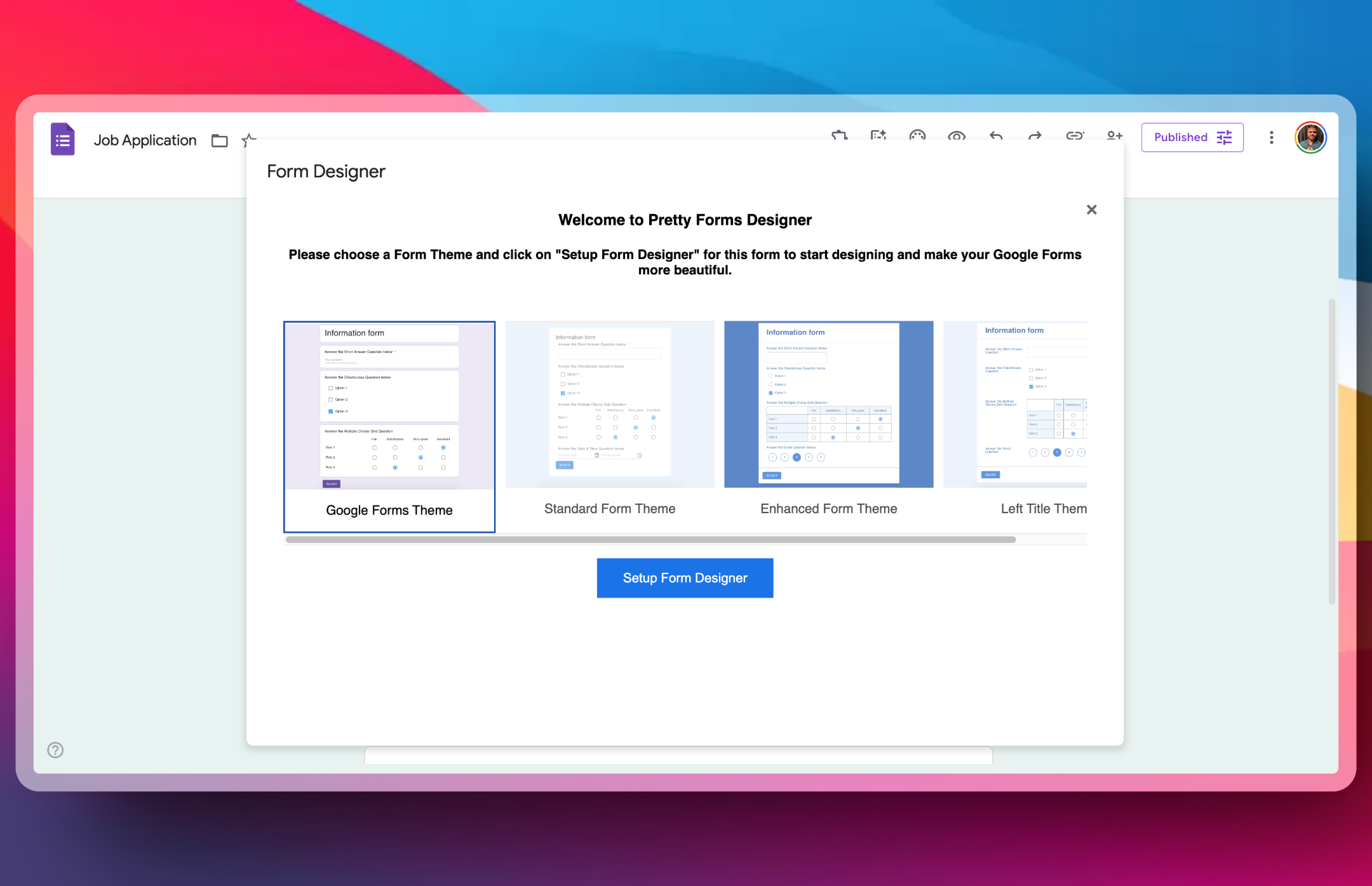
The Marketplace listing describes free access with paid features. Check the current allowance before committing a large survey; the older free-plan limits quoted in this article are no longer used as current pricing evidence.
Option 2: use a Youform dropdown
Try the real searchable-dropdown example to assess the interaction. Youform’s form-block guide describes the dropdown question for long option lists.
- Create a form or use the Google Forms importer.
- Review the dropdown options, labels, and required setting in the builder.
- Open the published preview and search for an item at the beginning, middle, and end of your list.
- Check the result on a phone and with a keyboard before sharing the new URL.
Youform Free includes unlimited forms and responses under fair use. Your logo, custom domains, and partial submissions require Pro; compare the current plans. Importing questions does not establish that every setting or historical response has moved.
Check the option list before you publish
- Use labels respondents recognize, and check spelling and duplicate names.
- Try a search with no match and decide how someone should report a missing option.
- Check keyboard focus and whether the phone keyboard covers useful choices.
- Verify the selected value reaches the correct response field.
A searchable list, a list synchronized with Google Sheets, and a dependent dropdown are separate features. Search changes how someone finds an option; it does not by itself keep options synchronized with a database.
For other Google Forms limitations, see conditional logic and the Youform comparison.