
Map the paths before building
Write down the audiences or situations that need different questions. For an event signup, in-person guests might need a dietary question while remote guests need a time-zone question. Everyone can then rejoin a shared closing section.
Keep the first version simple. Each extra branch is another path to review. Clear section names make the editor easier to understand and the published flow easier to test.
Set up section-based branching
- Add separate sections for the different paths and a shared final section if needed.
- Add a multiple-choice or dropdown question that determines the route.
- Open that question’s more-options menu and choose “Go to section based on answer.”
- Choose the appropriate destination section for each answer.
- At the bottom of each destination section, select the next section or the option to submit the form.
Know what the rule changes
Google’s dedicated branching documentation identifies multiple-choice and dropdown questions as the supported triggers. The rule changes the next section. It is not a general-purpose rule builder for arbitrary field combinations.
If you need complex paths, sketch them first and check whether sections can represent them cleanly. A long chain of tiny sections can become harder to maintain than a form built around the workflow.
Test every route, including the way back
- Preview each answer option and confirm that only the relevant sections appear.
- Check that a branch does not accidentally continue into the other branch.
- Go back and change an answer to check the revised route.
- Confirm that required questions do not stop a valid path and that every route reaches the intended ending.
Build branching into a Youform
Youform includes conditional logic and calculations on the free plan. Use logic to guide people through relevant questions and answer recall to keep useful context in the conversation.
You can import an existing Google Form and then review its questions and rules in the editor. Treat the import as a starting point: preview all paths before sharing the new link.
What field-level logic adds to a form
Section branching chooses which group of questions comes next. Field-level rules let you keep a question with the surrounding context while deciding whether a particular respondent needs to see it.
For example, a lead form might combine project type and budget before showing a scheduling question. A quiz can use a calculated score to choose an outcome. Keep the rules readable and test combinations of answers as well as individual paths.
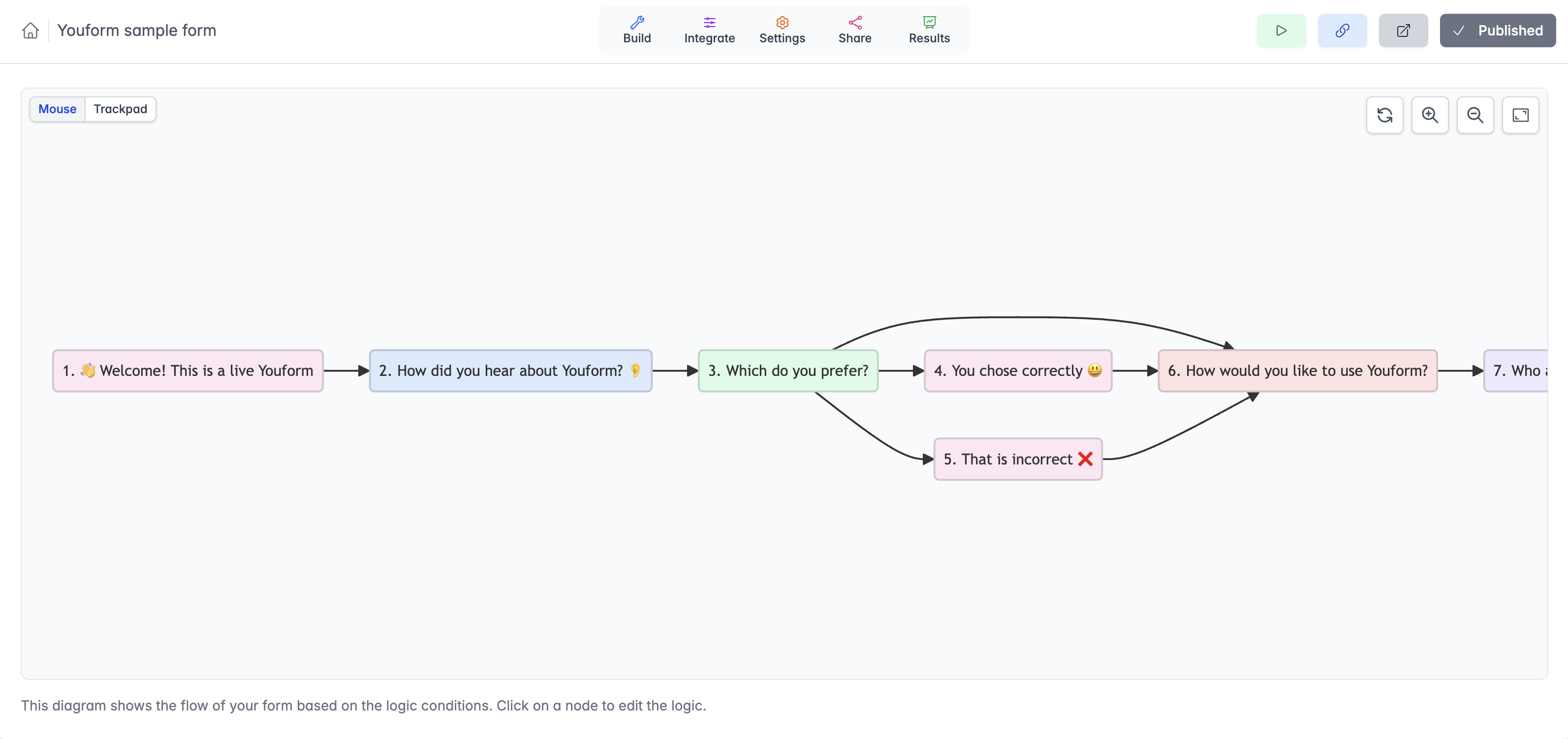
- Use conditions to show or skip relevant questions.
- Combine conditions with AND/OR rules where the workflow requires them.
- Use calculated values for quiz scores or conditional outcomes.
- Use answer recall to carry useful context into the next question.
- Review ending-page and redirect plan requirements separately; URL redirects require Pro.
Youform includes conditional logic and calculations on the free plan. Google’s native section-based branching is available for multiple-choice and dropdown questions.
Test a real branching example
- Start with an event question: “How will you attend?” Offer in-person and online choices.
- Route in-person attendees to venue or dietary questions and online attendees to questions about the remote session.
- Send both paths to the shared contact or closing section.
- Go back and change the attendance answer. Check that the new path does not leave an irrelevant required question in the way.
In Google Forms, create the separate sections first and set the destination at the bottom of each one. In Youform, build the corresponding conditions in the logic editor. A diagram is useful, but a preview of every route is the final check.


