


Quick answer: Google’s documented native option is a confirmation message after submission. You can include a next-step URL, but that requires the respondent to follow it. For an automatic redirect, use a form builder with a supported redirect setting, such as Youform Pro.
Reviewed . This guide is published by Youform.
Option 1: put a link in the confirmation message
- Open the Google Form and choose Settings.
- Expand Presentation, then edit the confirmation message.
- Add a short explanation and the full destination URL, then save.
- Check that the destination can be opened by your intended audience.
For example: “Thanks for registering. Open the workshop details: https://example.com/workshop”. Tell people what the link opens so they have a reason to take the next step.
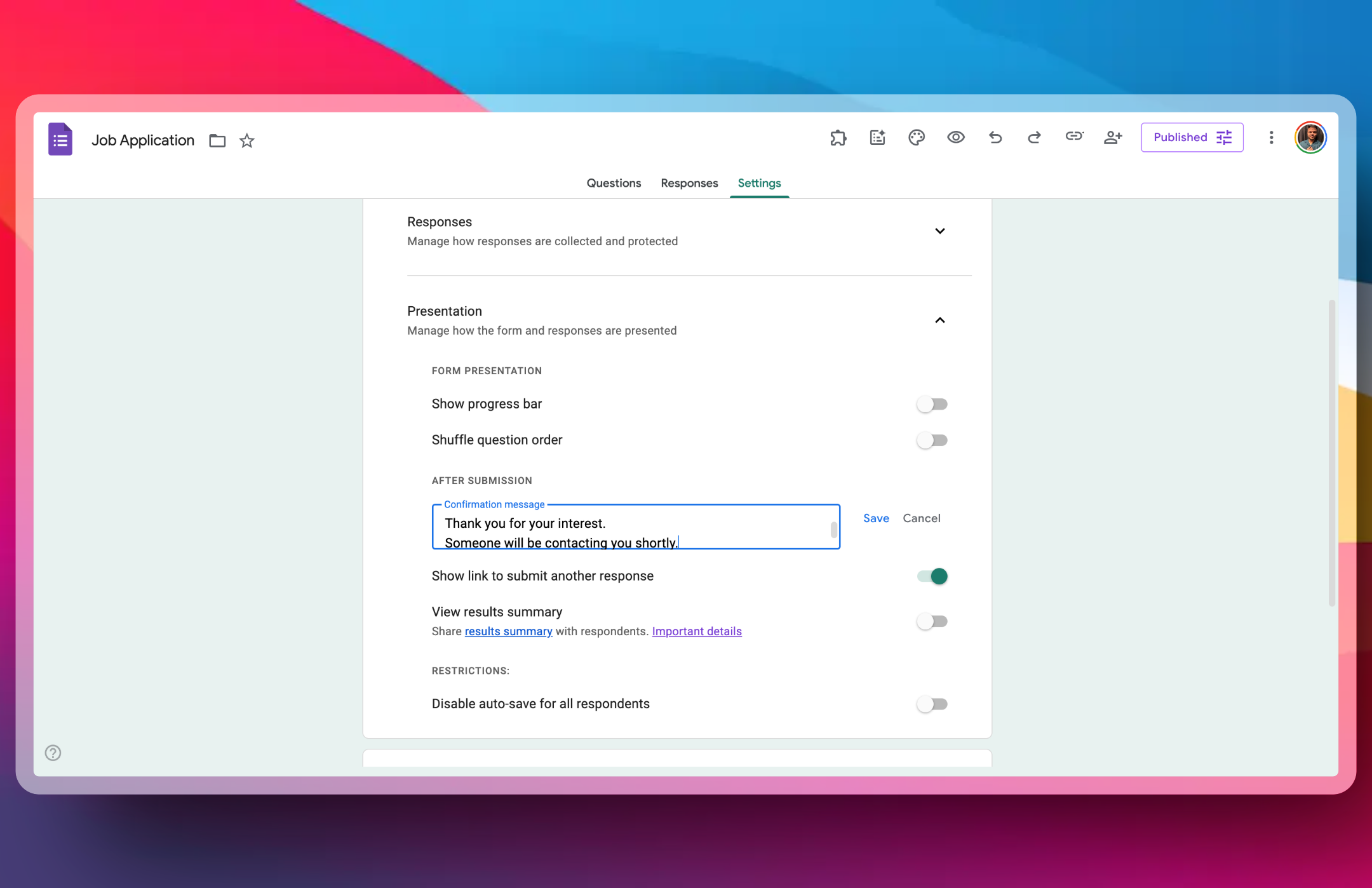
Google documents these controls in its publishing and sharing guide. This option can be enough for a simple survey when an automatic handoff is unnecessary.
Option 2: understand the limits of iframe redirect code
Some tutorials count iframe load events and redirect the surrounding website after a later load. A load event does not prove that Google accepted a response: it can also occur during navigation or another page change. The website cannot freely read the embedded Google page to verify its state because the browser enforces a same-origin policy.
This is why an iframe counter is an unreliable way to confirm success for a multi-page form or a flow with validation. Treat it as a fragile workaround, not a supported submission callback. The old snippet in this article has been removed rather than presented as a dependable redirect.
Option 3: use Youform Pro for an automatic redirect
Youform has a redirect setting for the ending after submission. The ending-screen guide distinguishes Free titles, descriptions, and embeds from Pro ending-button customization and URL redirects.
- Start a form or use the Google Forms importer.
- Review the questions, logic, and endings before changing the public link.
- On a Pro plan, configure the ending’s redirect URL and check the destination.
- Review each outcome and any connected apps. Keep historical responses separately.
Youform Free can collect unlimited responses under fair use, but automatic redirects require a paid plan. Check current pricing; for a casual survey, the free Google confirmation message may be sufficient.
Redirecting after submission is different from using a custom domain
A branded invitation URL controls how people arrive. A post-submit redirect controls where they go after answering. See the Google Form custom-domain guide for redirects and embeds at the start of the journey, or compare the broader Google Forms alternative.